SiggySoft Video Editor

Trims, crops, deinterlaces and titles your videos on the exact frame, then saves them as new files.

A free Windows program from SiggySoft LLC · version 1.7.3 · all programs

What it does

SiggySoft Video Editor makes new videos from tape transfers, camcorder clips and phone videos, and never changes the originals. It keeps only the parts you mark, each cut on the exact frame you chose. It also turns the half-pictures of tape video into whole frames, crops away black bars, stands sideways phone videos upright, and adds titles on cards or over the picture. Find the scenes splits a tape transfer at every camera stop and leaves out black, blue screens and snow. The result is saved as MP4 (H.264, HEVC or AV1), MOV (ProRes), lossless MKV (FFV1) or the original's own format.

Cuts on the exact frame

Mark each part to keep with Trim start and Trim end on a timeline of small pictures and sound waveforms. Every cut lands on the frame you marked, and DV pieces can be copied without re-encoding.

Finds the scenes for you

Find the scenes measures every frame, starts a new piece at each camera stop, and leaves out black, blue screens and snow. Save the scenes then writes each scene to a folder as its own file: name - scene 01.mp4, name - scene 02.mp4.

Tape video made whole

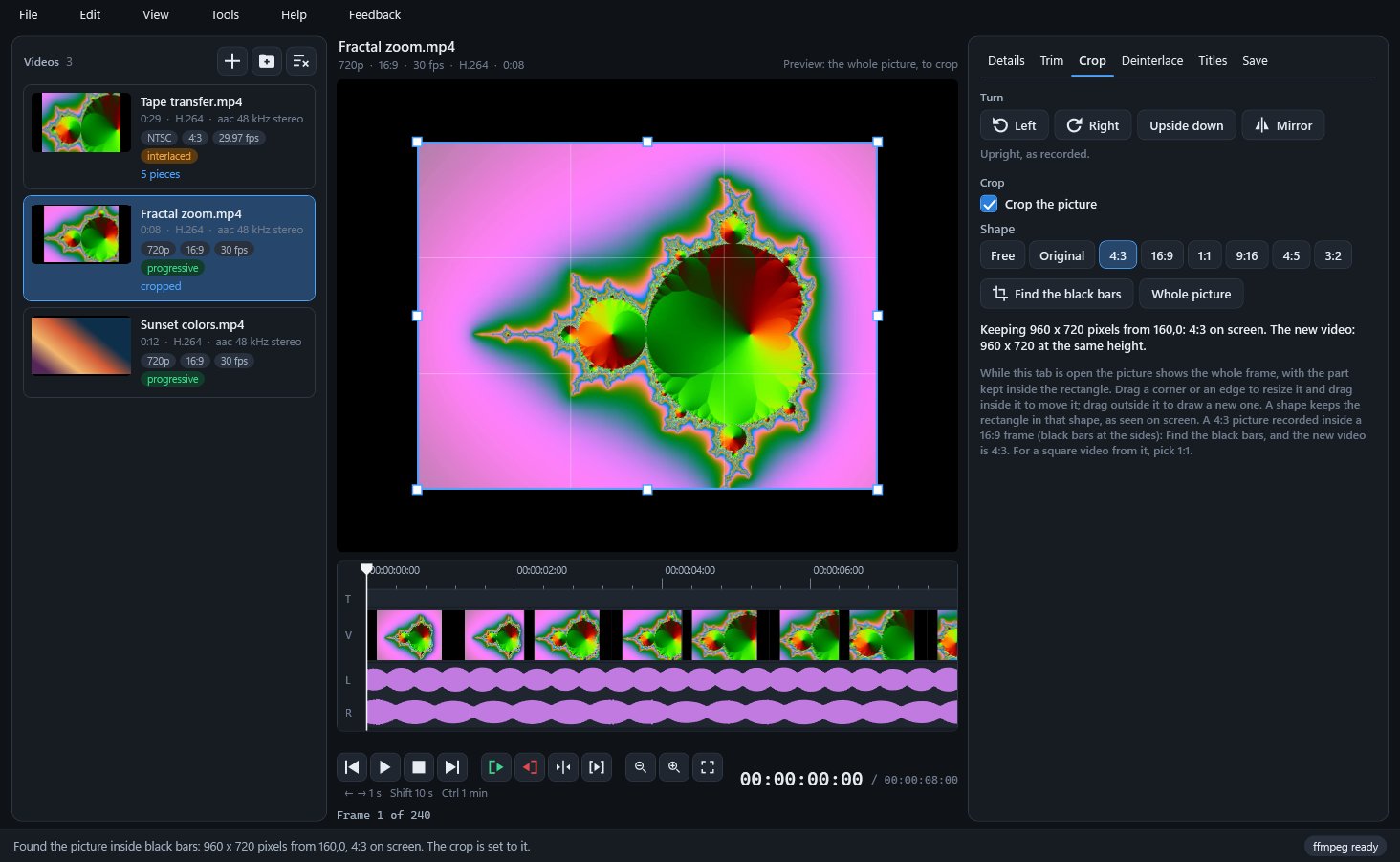
Interlaced tape and camcorder video becomes whole frames, 59.94 a second from NTSC or 50 from PAL, so movement shows no comb lines. Find the black bars crops a 4:3 picture out of a 16:9 frame with one button.

Titles and effects per piece

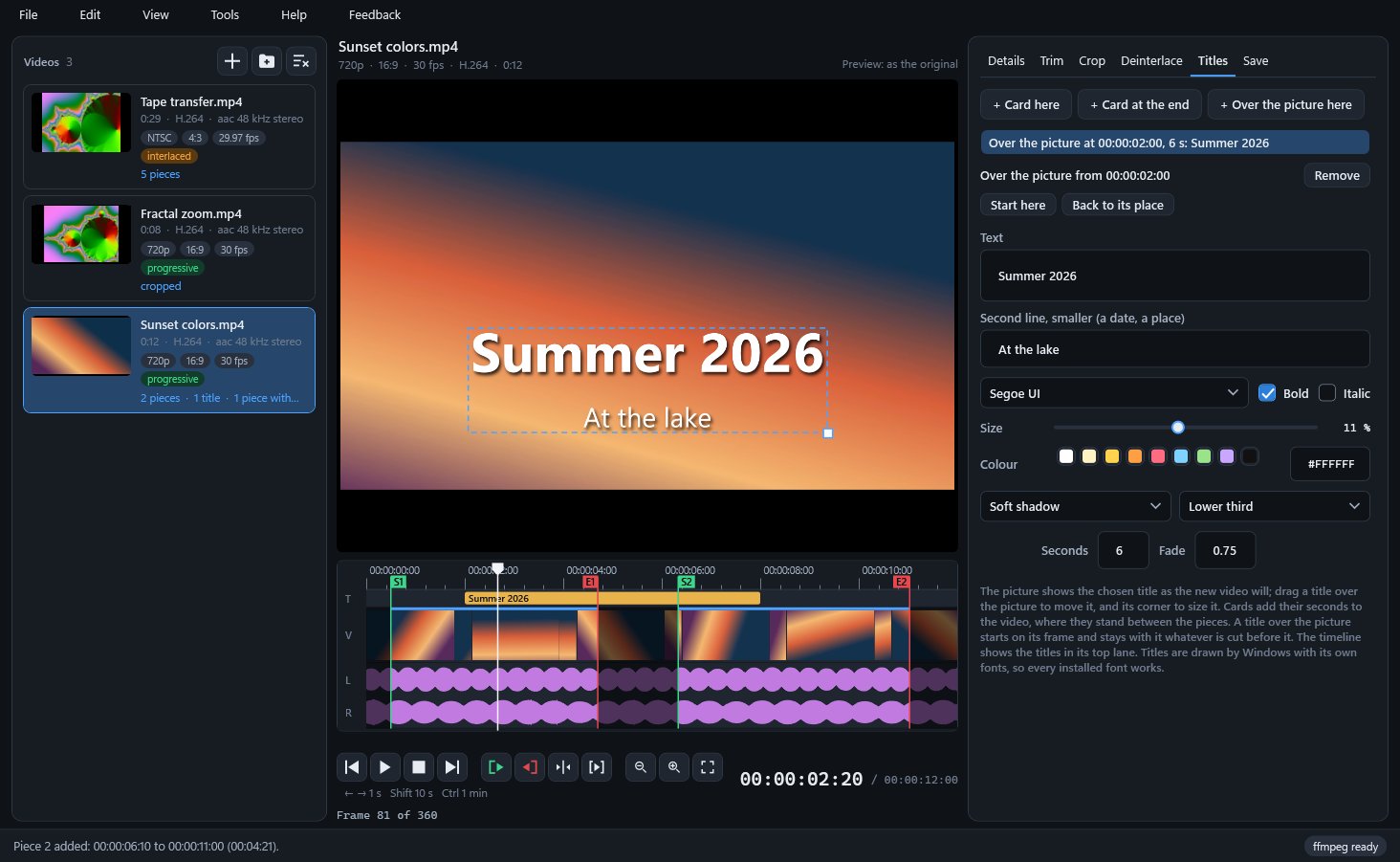
Put a title card between pieces, or text over the picture in any font installed in Windows. Each piece can have its own brightness, contrast, colour, noise reduction, fades and volume, kept as presets for other videos.

Get SiggySoft Video Editor

  • Windows 10 or 11, 64-bit
  • The .NET 8 Desktop Runtime or a newer one; Setup installs it when it is missing
  • FFmpeg, the free program the editor reads and makes videos with: the setup check downloads it (about 115 MB) when you agree
  • Disk space for the new files: one minute of DV saved as H.264 at the default quality took 30.9 MB
  • Optional: Python 3.12 or newer, so the setup check can set up QTGMC, the editor's best deinterlacer
  • Optional: a graphics card whose video encoder works on this PC, for faster saving
  • Free for Team Siggy members; joining is free
Join Team Siggy to download

Joining is free and takes your e-mail address only. Already a member? Sign in and the download is here.

Version 1.7.3 · SiggySoftVideoEditor-1.7.3-Setup.exe · 14.6 MB
SHA-256 489fa3c1d2c90cdc30537b6dbef18223d1e1f82ff38476e888c514ddde60934a

What it looks like

Click a picture to see it full size.
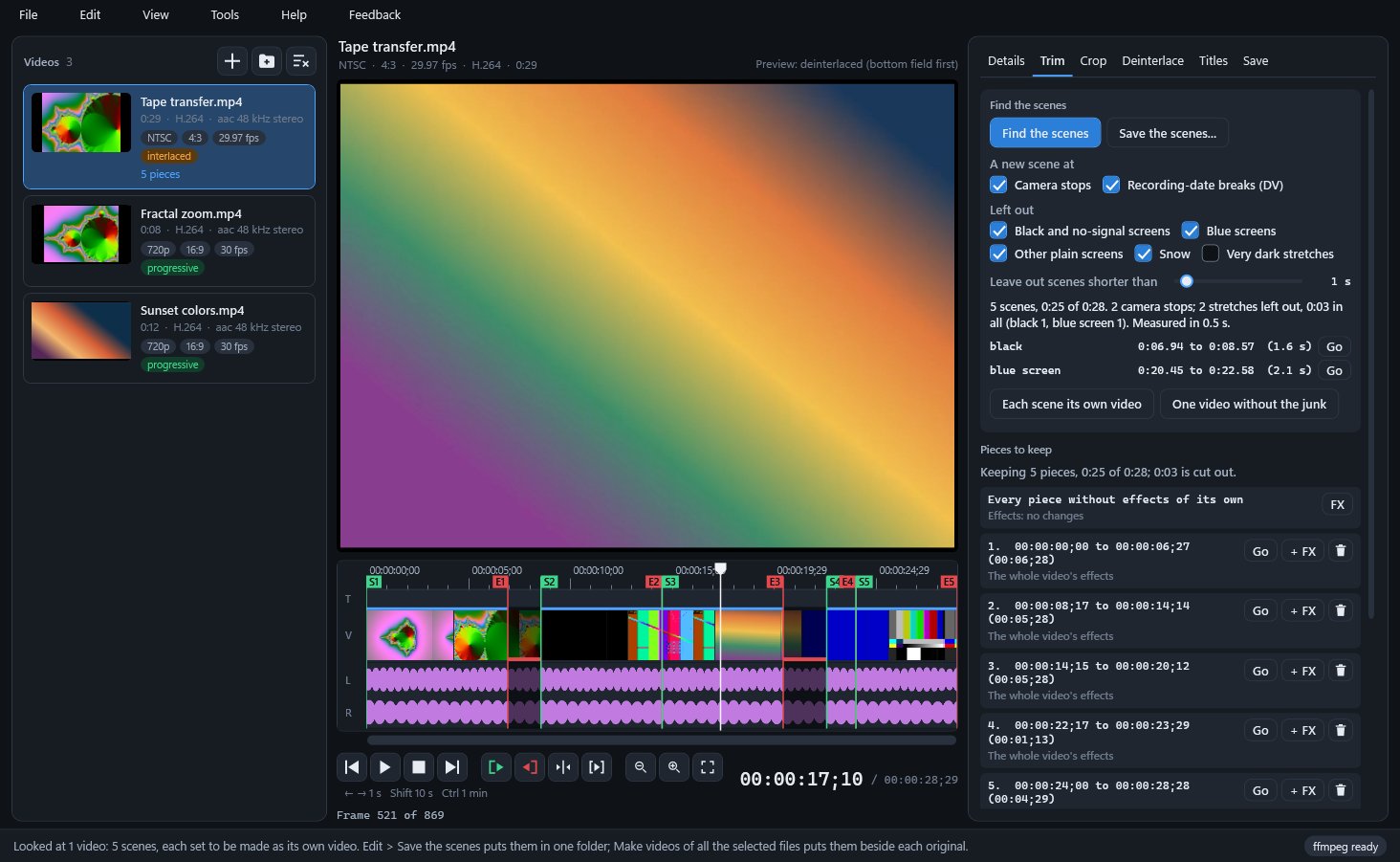
Find the scenes: five scenes marked on the timeline, the black and blue-screen stretches left out
A title over the picture, moved and sized by dragging its box
Find the black bars: a 4:3 picture inside a 16:9 frame, cropped to 4:3
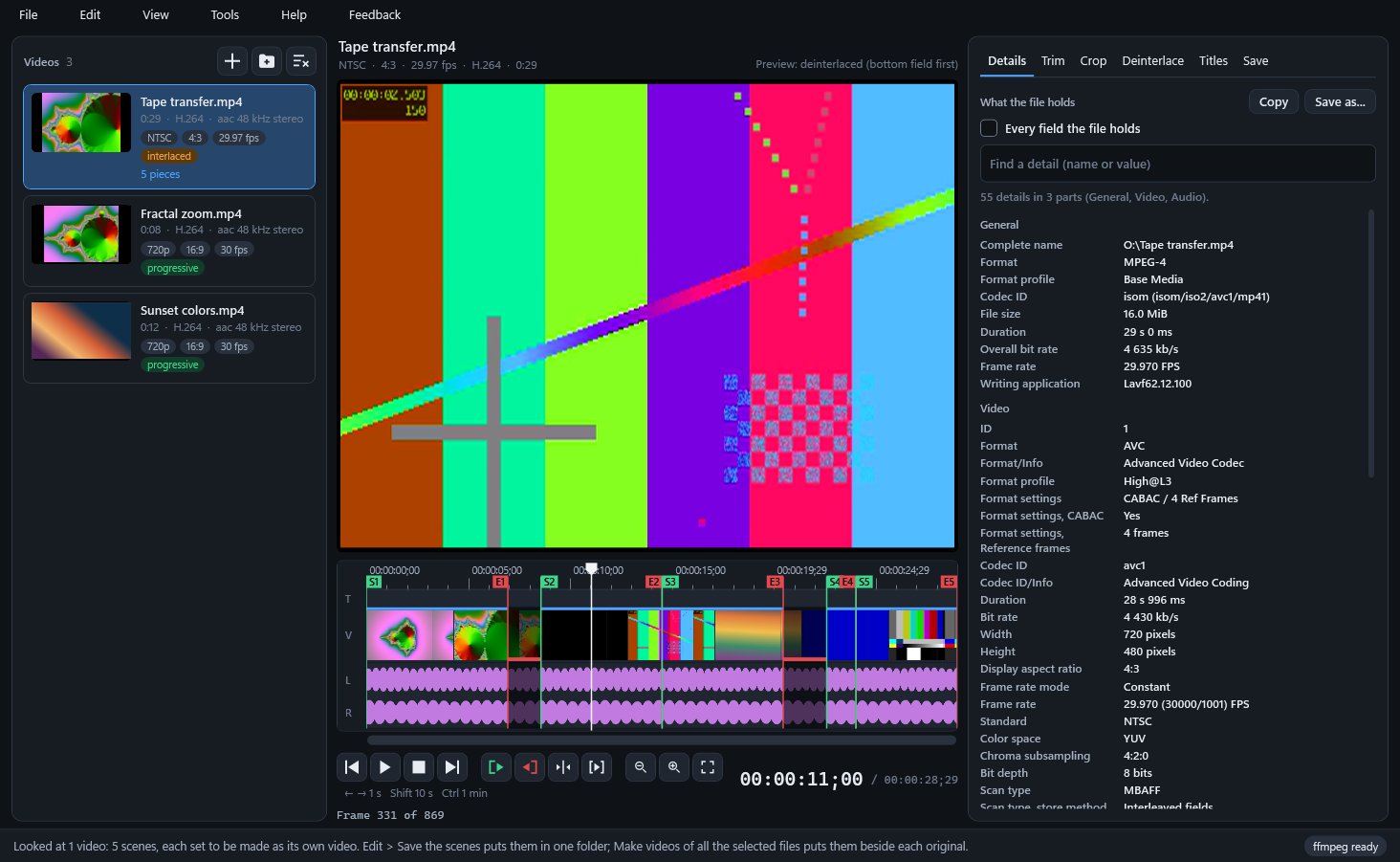
The Details tab: 55 details of an interlaced NTSC test video
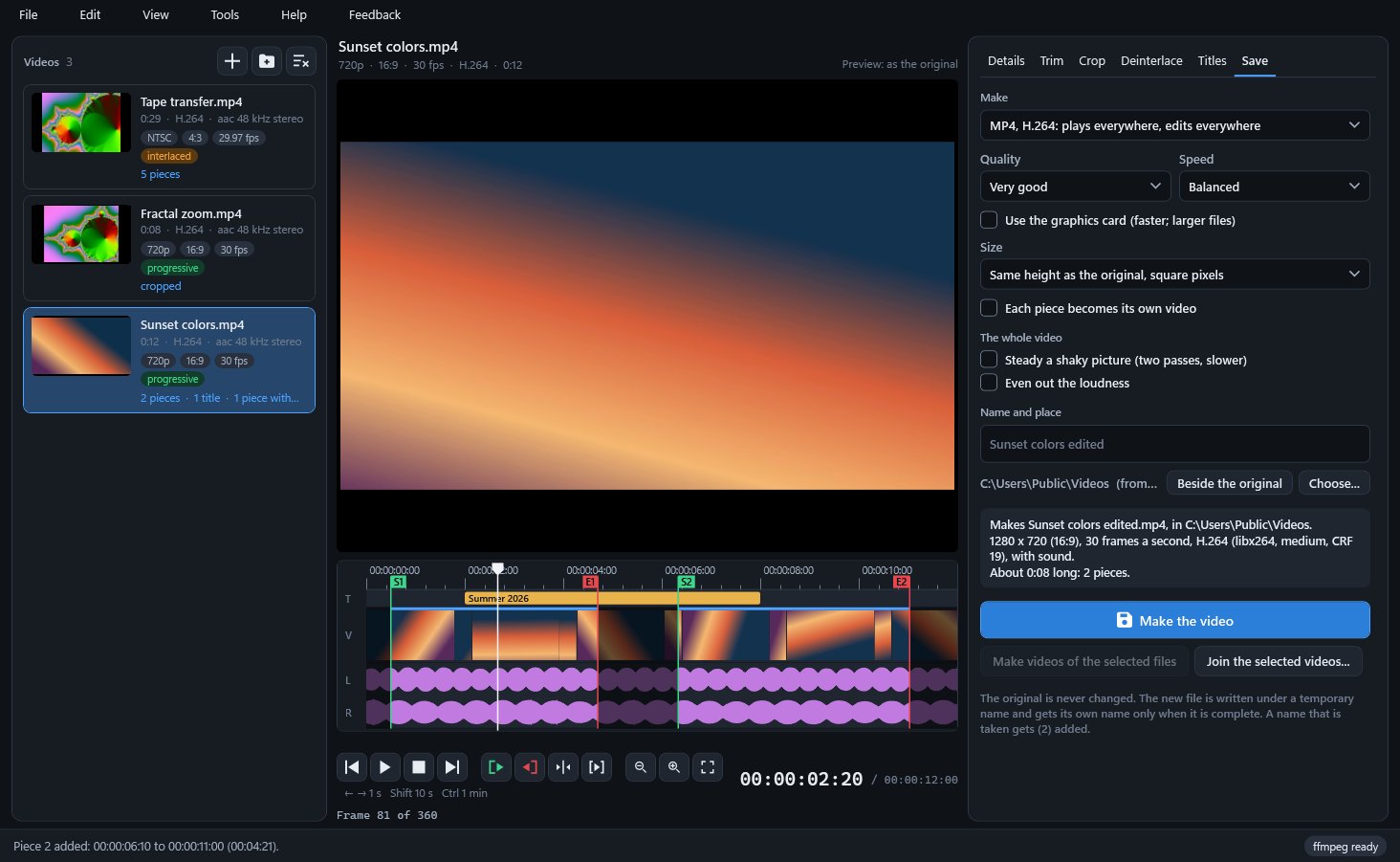
The Save tab says what will be made before you press Make the video

What's in the window

PartWhat it does
Video listDrop files or folders here; each video shows a small picture and badges for NTSC or PAL, its shape, its frame rate and whether it is interlaced.
TimelineA ruler in hours, minutes, seconds and frames, a lane for titles, a strip of small pictures and the sound's waveform, with green and red markers around each piece you keep.
Details tabWhat the file says about itself, from its encoder settings to a DV tape's recording date, to search, copy, or save as text, a web page, JSON or XML.
Trim tabFind the scenes, the pieces to keep, and the effects of each piece (+ FX, FX, - FX) with presets.
Crop tabTurn a quarter or half turn, mirror, crop to a shape (4:3, 16:9, 1:1, 9:16, 4:5, 3:2), or Find the black bars.
Deinterlace tabWhat the interlace detector found in the pictures, and the choice of deinterlacer, frame rate and field order.
Titles tabCards between the pieces and titles over the picture: text, a smaller second line, font, size, colour, style, place, length and fade.
Save tabThe kind of file, quality, speed, size, name and folder; steadying and even loudness for the whole video; a summary of what will be made, then Make the video.
New filesEach video being made, one at a time in the background, with its progress and time left; a finished one offers Play, Show and Add to the list.
Setup checkLists what the editor needs on this PC, installs FFmpeg when you agree, and says whether .NET, Windows and the editor are up to date.

Installing it

  1. Download the installer (SiggySoftVideoEditor-1.7.3-Setup.exe) from the box above. The installer is not signed yet, so the browser may say the file is not commonly downloaded: choose Keep.
  2. Open it. Windows may say it protected your PC: click More info, then Run anyway.
  3. It installs for your Windows account without administrator rights, starts the program, and puts a shortcut on the desktop and in the Start menu. If the PC lacks the .NET runtime the program needs, the installer downloads it from Microsoft first.
  4. New versions come from this site. When the program starts it looks for one and downloads it in the background; a notice under the menu says when it is ready, and it installs the next time you start the program (or at once from Help, Check for updates).
  5. To remove it: Windows Settings, Apps, Installed apps. Your settings and your own files stay.

To check the download, run Get-FileHash SiggySoftVideoEditor-1.7.3-Setup.exe in PowerShell and compare the result with the SHA-256 above.

Tips

  • To cut a long tape transfer into clips, open the Trim tab, press Find the scenes, check the pieces on the timeline, then choose Save the scenes to a folder. DV scenes are copied as DV, every frame exact.
  • Find the scenes cut one scene in two? Click the red E marker between the two pieces and press Delete: they become one piece.
  • Leave Very dark stretches unticked for night footage. That rule takes dark, noisy night pictures for blank tape.
  • To convert a folder of old AVI or MPEG files the same way, edit one, select them all with that one clicked first, choose Edit > Copy this video's edit to the selected videos, then Edit > Make videos of all the selected files.
  • Ctrl with the mouse wheel makes everything in the window larger or smaller, from 60 to 150 percent; Ctrl+0 goes back to 100.

Privacy

The installed editor checks www.middlesiggy.com for a new version at every start (Settings > Updates turns this off) and reads Microsoft's 7 KB list of .NET releases at most once a day, sending nothing about the PC. FFmpeg and the optional deinterlacer download only after you agree in the setup check. A Feedback report leaves the PC only when you press Send; the editor sends no usage counts and no crash reports. See the site's privacy policy.

Version history

What the recent versions added, newest first. The full list is in the manual.

Version 1.7.3 · 2026-10-26

  • The manual and the tooltips are written for anyone who downloads the program from this site
  • Feedback reports go to www.siggysoft.org

Version 1.7.2 · 2026-10-08

  • The help under the Trim tab now explains the arrow keys' steps and how Delete joins two pieces

Version 1.7.1 · 2026-10-07

  • Left and Right move the position line by a frame, a second or a minute, depending on the zoom; Shift and Ctrl take larger steps
  • Find the scenes shows its progress as a percentage
  • Taking away a marker joins two pieces into one; the right-click menu can also join a piece with the next

Version 1.7.0 · 2026-10-07

  • A new timeline: timecode ruler, small pictures of the video, the sound's waveform, and green and red trim markers you drag
  • Each piece can have its own effects (+ FX), saved as presets for other pieces and videos
  • Title cards stand between pieces; a title over the picture starts on a chosen frame and is moved and sized on the picture
  • Fixed: a title over the video changed the brightness levels of the whole new video, not only where the title showed

Version 1.6.4 · 2026-10-07

  • A video opened with the editor is the one selected and shown, also when the list already holds it

Version 1.6.0 · 2026-10-06

  • A Feedback menu: report a problem, suggest a feature, ask a question or say thanks
  • A report goes over HTTPS only when you press Send; one that cannot be sent waits and goes at the next start

Help and feedback

The program's Help menu opens the manual. To report a problem or suggest an idea, use the Feedback menu in the program: you see everything before it is sent. Or write through the contact page.

All SiggySoft programs