What it looks like
Click a picture to see it full size.
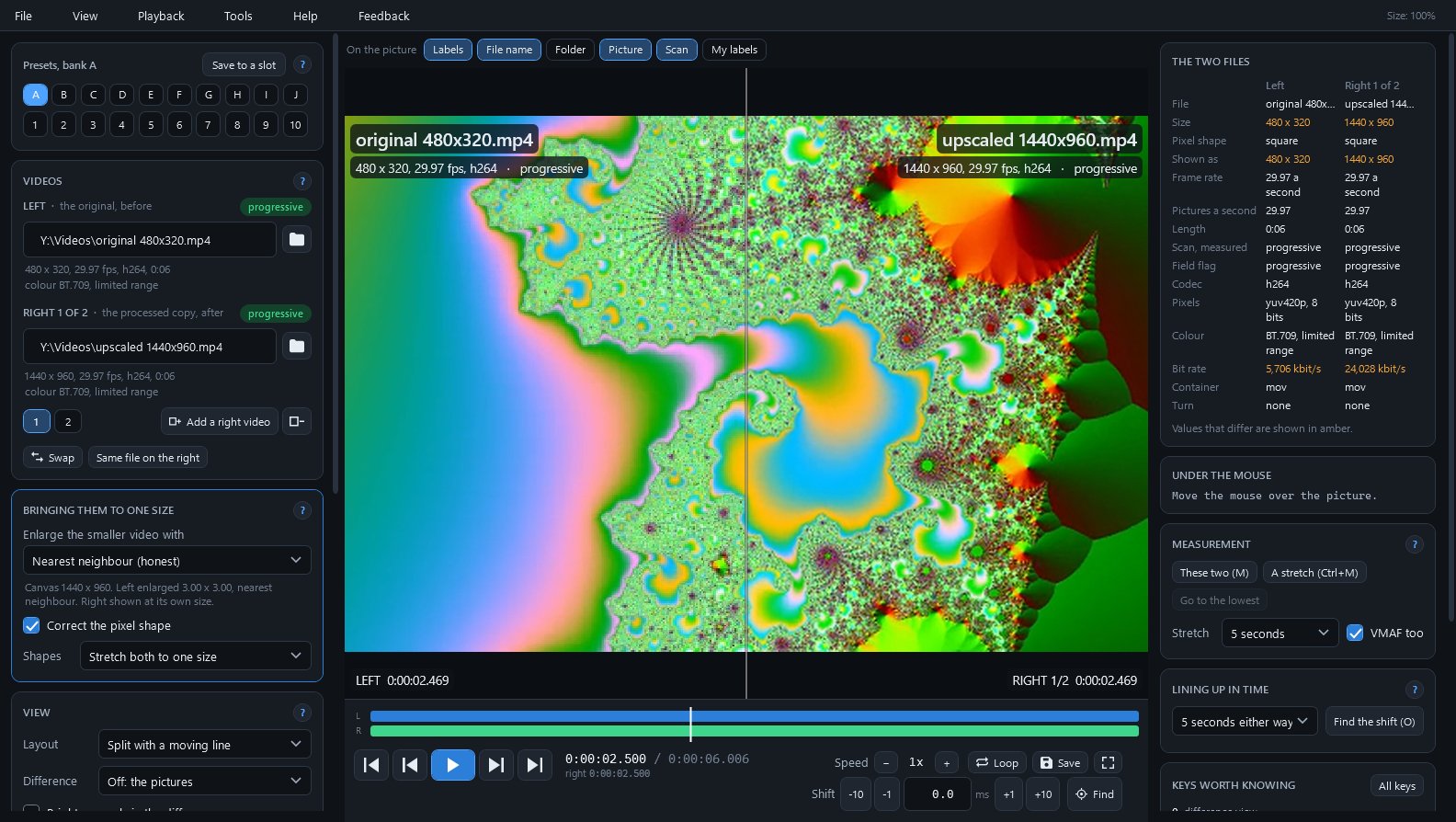
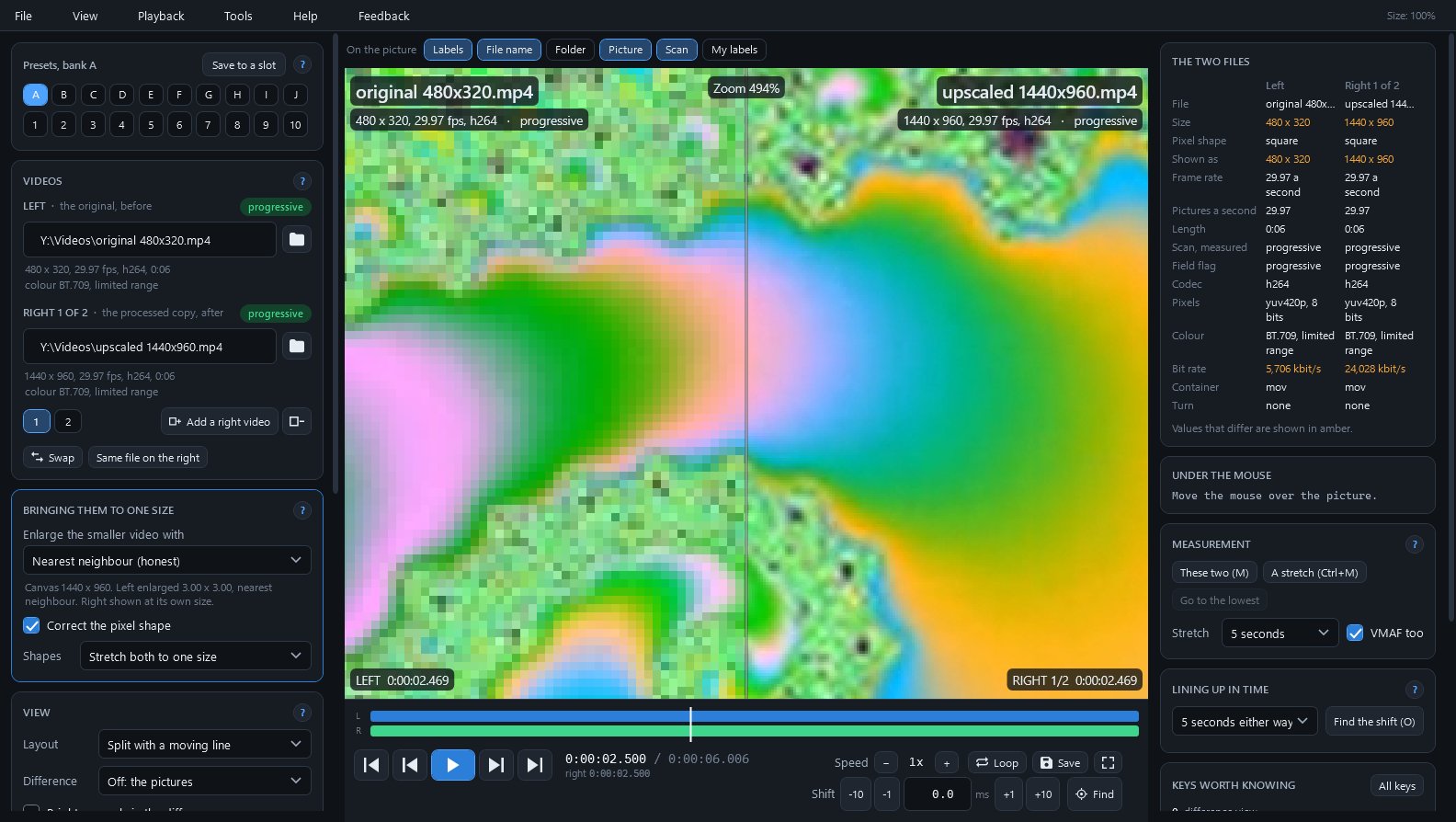
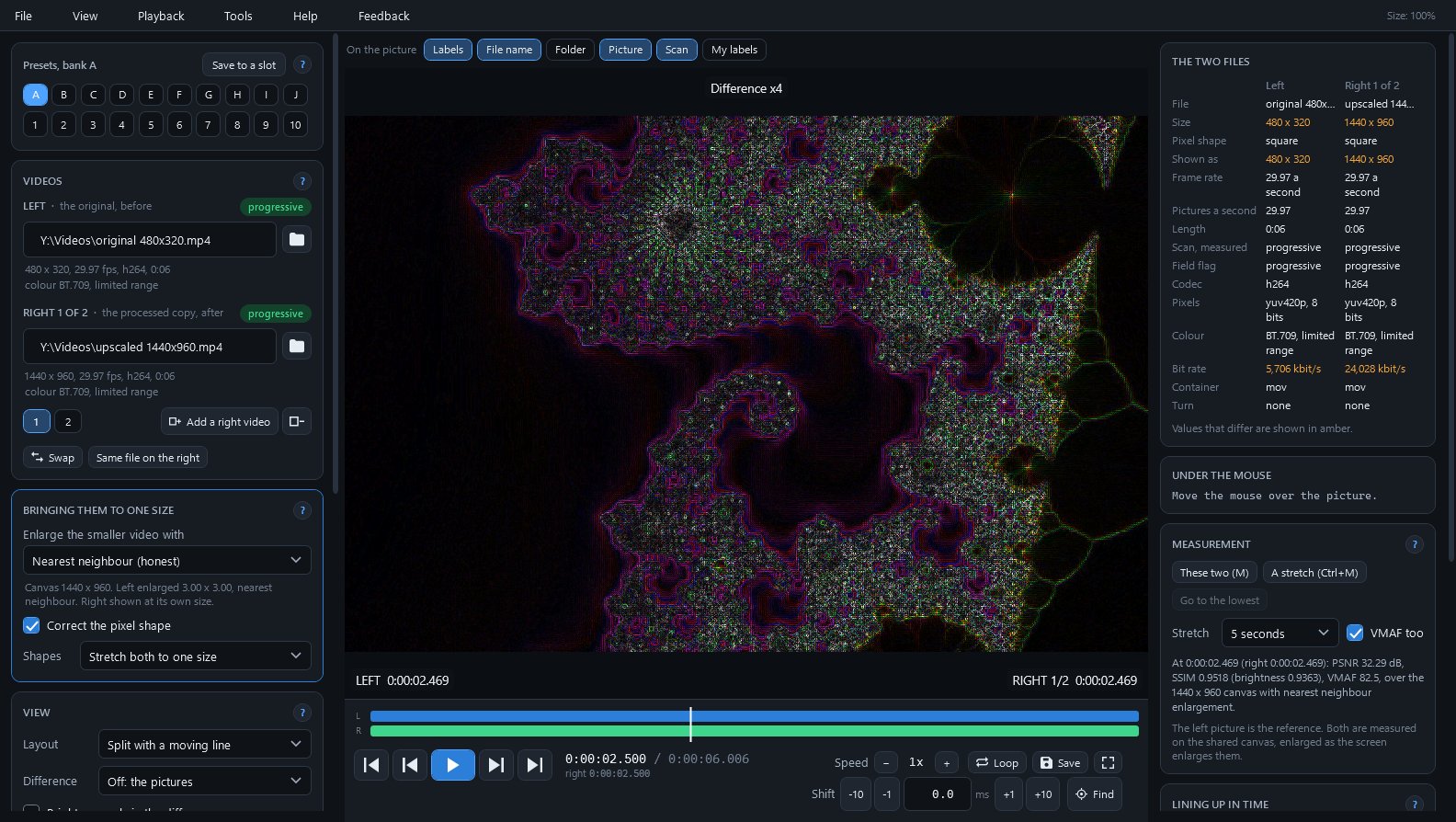
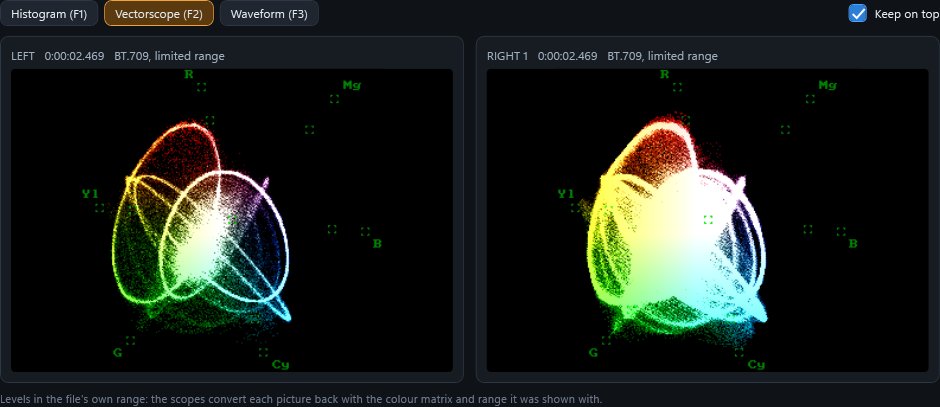
Two versions of one video in one picture, in step, to see what an upscaler or deinterlacer changed.
SiggySoft Video Compare opens two copies of the same video and shows them in one picture, in step: a tape capture and its upscaled copy, a file before and after deinterlacing, or two encodes of one master. A line follows the mouse across the picture, and the difference view lights up every pixel that changed. The smaller video is enlarged with nearest neighbour unless you choose otherwise, so an upscaler is judged against the pixels the original really holds, not against a second, smoothed enlargement. It is for anyone checking an upscale, a deinterlaced copy or a re-encode against its original, and it never changes the files it opens.
The smaller video is enlarged with nearest neighbour, so each original pixel becomes a block and nothing is invented. Bilinear, bicubic and Lanczos can be chosen instead, and the line under the choice says how each side reached the shared canvas.
Pictures are matched by their timestamps, so a 29.97 capture lines up with its 59.94 deinterlaced copy without either being converted, and one step back lands on the exact picture on any codec. The offset finder (O) works out the time shift between two files from their pictures.
PSNR, SSIM and VMAF for the two pictures on screen, or for a stretch of 1 second to 1 minute with the mean and the lowest moment of each score. A histogram, vectorscope and waveform show both sides side by side.
Add more right videos and switch between them with Tab at the same moment; each keeps its own time shift and label. Two upscalers or two deinterlacers can be ranked against the same original this way.
Joining is free and takes your e-mail address only. Already a member? Sign in and the download is here.
Click a picture to see it full size.
| Part | What it does |
|---|---|
| Presets, banks A to J | A hundred preset slots, ten banks of ten, each holding both files and every choice, so a whole comparison comes back in one click. |
| Videos | The original on the left and the processed copy on the right, each with a badge that says interlaced or progressive as measured from its pictures. |
| Bringing them to one size | How the smaller video is enlarged, pixel-shape correction for DV and DVD, and a line that says what was done to each side. |
| The picture | Split with a moving line, side by side, one above the other, or the difference (plain, times 4 or signed), with zoom from 50 to 800 percent, a magnifier and a crop. |
| Labels on the picture | Switches above the picture for each side's file name, folder, picture size and frame rate, measured scan type, or names you type. |
| Timeline and transport bar | Both files drawn to scale with the time shift as an offset, and play, step, loop, speed from a tenth to 8 times, Save and full screen. |
| The two files | Size, pixel shape, frame rate, scan, codec, colour, bit rate and container of both files side by side, with values that differ in amber. |
| Measurement and lining up in time | The PSNR, SSIM and VMAF results, Go to the lowest, and the offset finder with Undo. |
| Scopes window | Histogram (F1), vectorscope (F2) or waveform (F3) of both sides, following the picture as it plays or steps. |
| Field view (G) | An interlaced side shown as its fields: each field in turn, the top field only or the bottom field only, to check a field order or judge a deinterlacer. |
To check the download, run Get-FileHash SiggySoftVideoCompare-1.4.1-Setup.exe in PowerShell and compare the result with the SHA-256 above.
Video Compare sends nothing in the background: no usage counts and no crash reports. It goes online to download the FFmpeg libraries (77 MB, once, from an open-source project's public builds, checked against a pinned SHA-256) after you agree, to look for a new version on www.middlesiggy.com at each start (Settings turns this off), to read the 7 KB list of .NET releases at most once a day (also switchable), and to send a Feedback report to www.siggysoft.org only when you press Send. See the site's privacy policy.
What the recent versions added, newest first. The full list is in the manual.
Version 1.4.1 · 2026-10-26
Version 1.4.0 · 2026-10-14
Version 1.3.0 · 2026-10-12
Version 1.2.0 · 2026-10-06
Version 1.1.1 · 2026-10-06
Version 1.1.0 · 2026-10-06
The program's Help menu opens the manual. To report a problem or suggest an idea, use the Feedback menu in the program: you see everything before it is sent. Or write through the contact page.