What it looks like
Click a picture to see it full size.
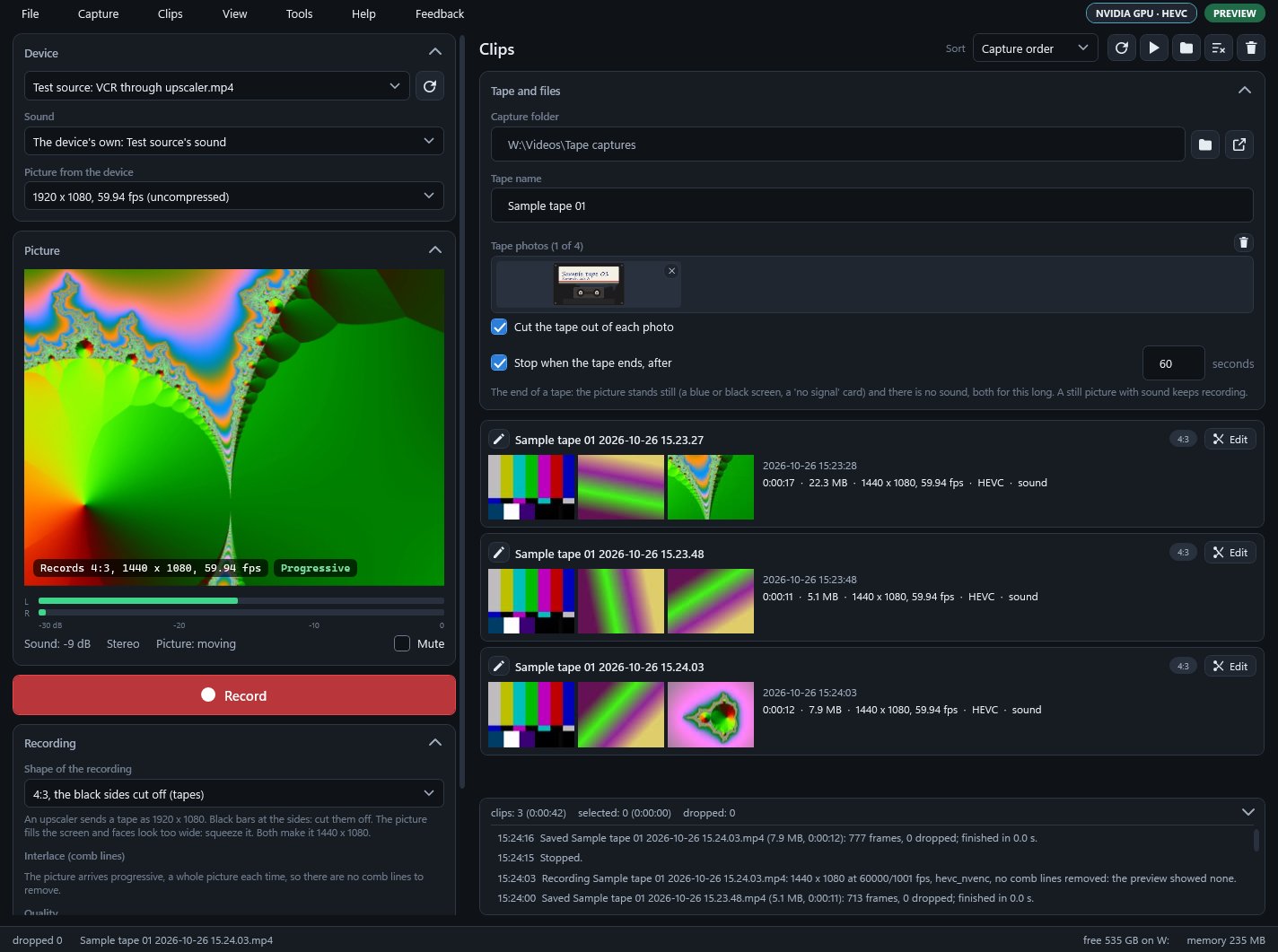
Records VHS and other tapes, cameras and webcams through a USB capture device to MP4 files.
SiggySoft Video Capture records from a USB capture device or webcam to MP4, for people copying VHS, VHS-C, Video8, Hi8 or Betamax tapes, or recording a camera over HDMI. A tape played through an upscaler arrives as 1920 x 1080 with black sides; the program keeps the 4:3 picture at full height, 1440 x 1080. It picks the device's own sound, removes comb lines when the live picture has them, records in H.264, HEVC or AV1 at a quality chosen for the source, and stops by itself at the end of the tape. Each tape becomes one file, finished the moment you press Stop.
An upscaler sends a tape as 1920 x 1080 with black sides. The program cuts them off and records 1440 x 1080, or squeezes a stretched picture back to 4:3.
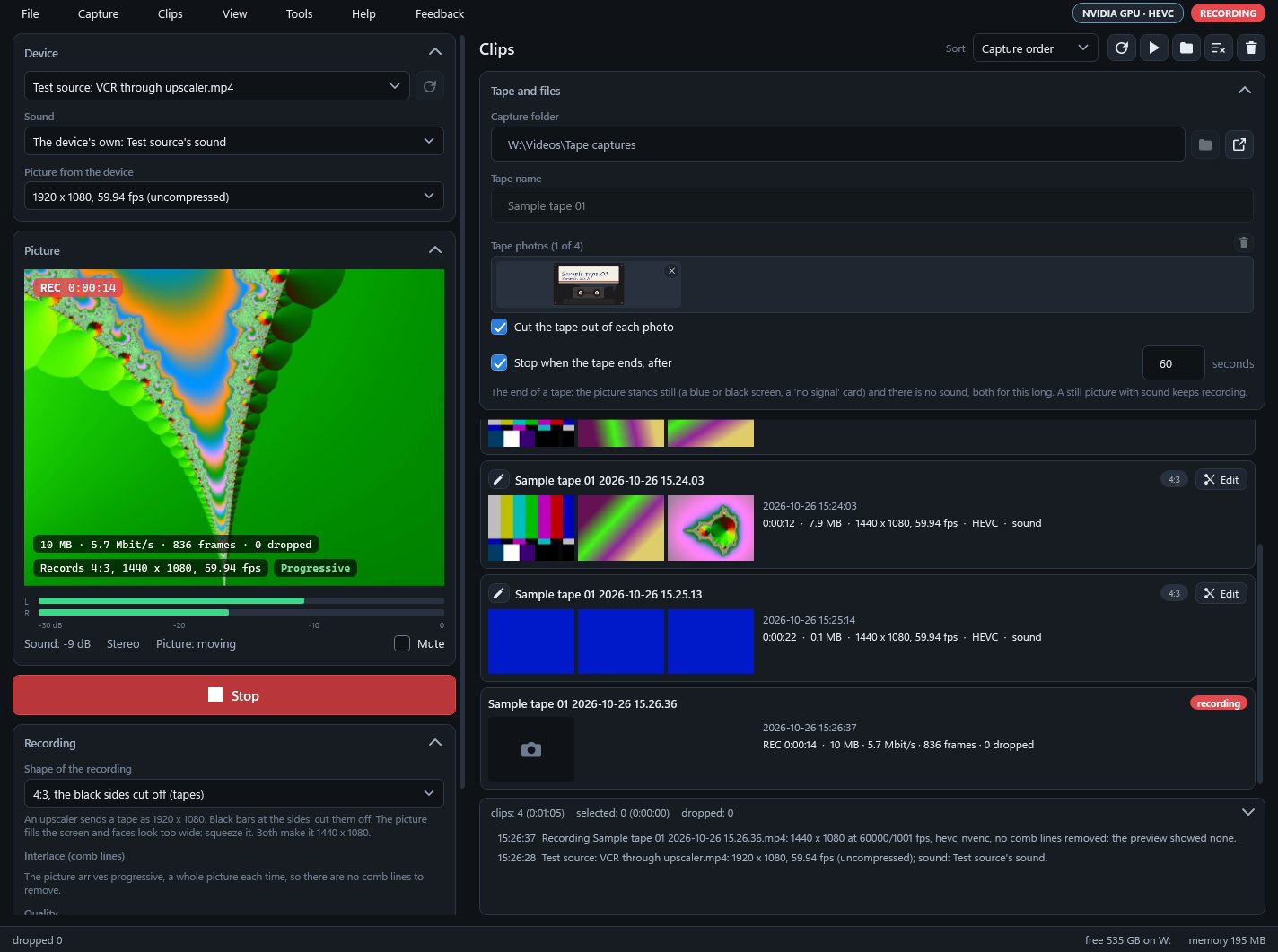
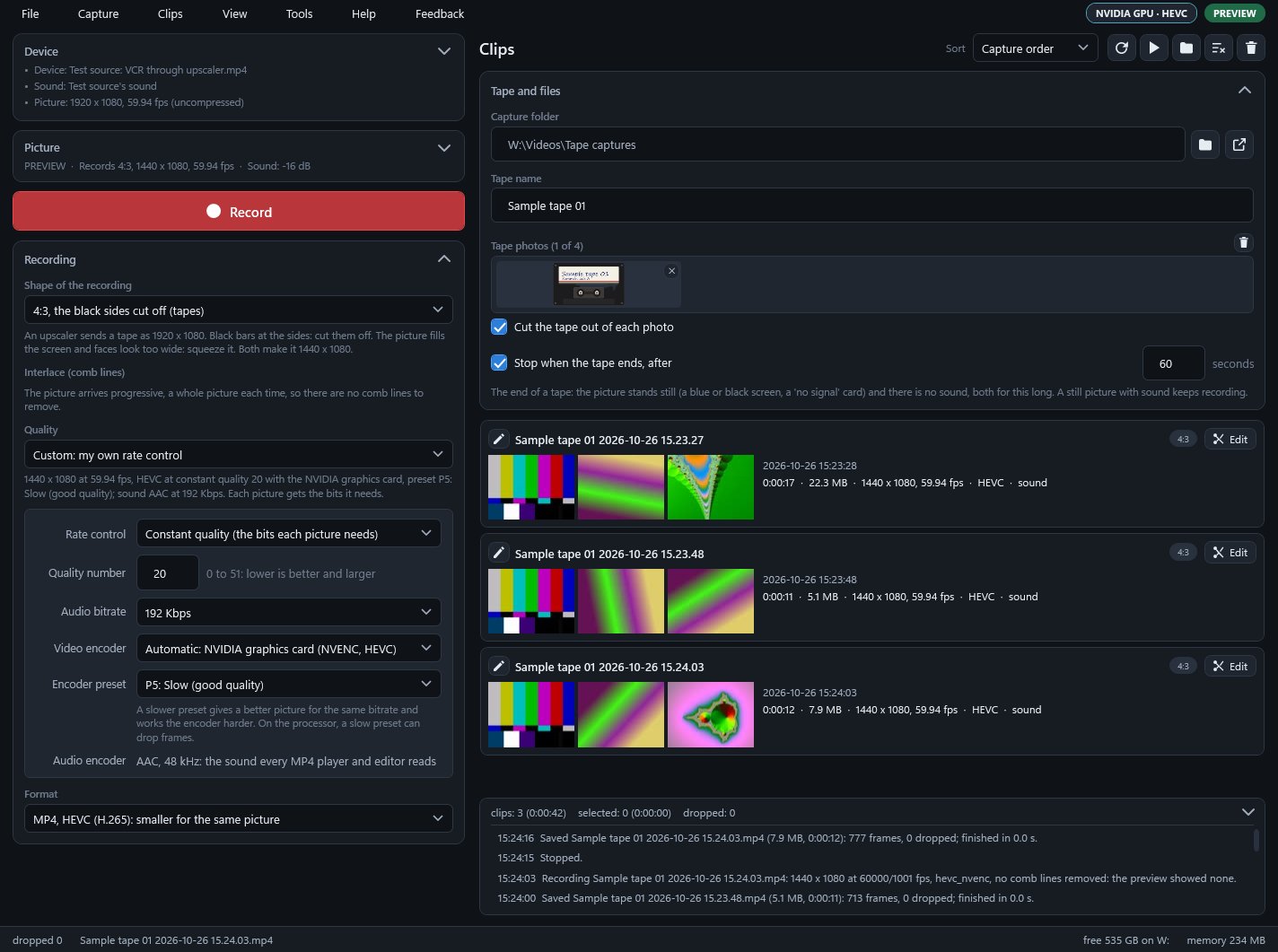
Pick VHS, S-VHS, DVD or a camera size from 720 lines to 4K, or set your own bitrate. A VHS tape through an upscaler measured about 10 Mbit/s at the VHS setting, 4.5 GB an hour.
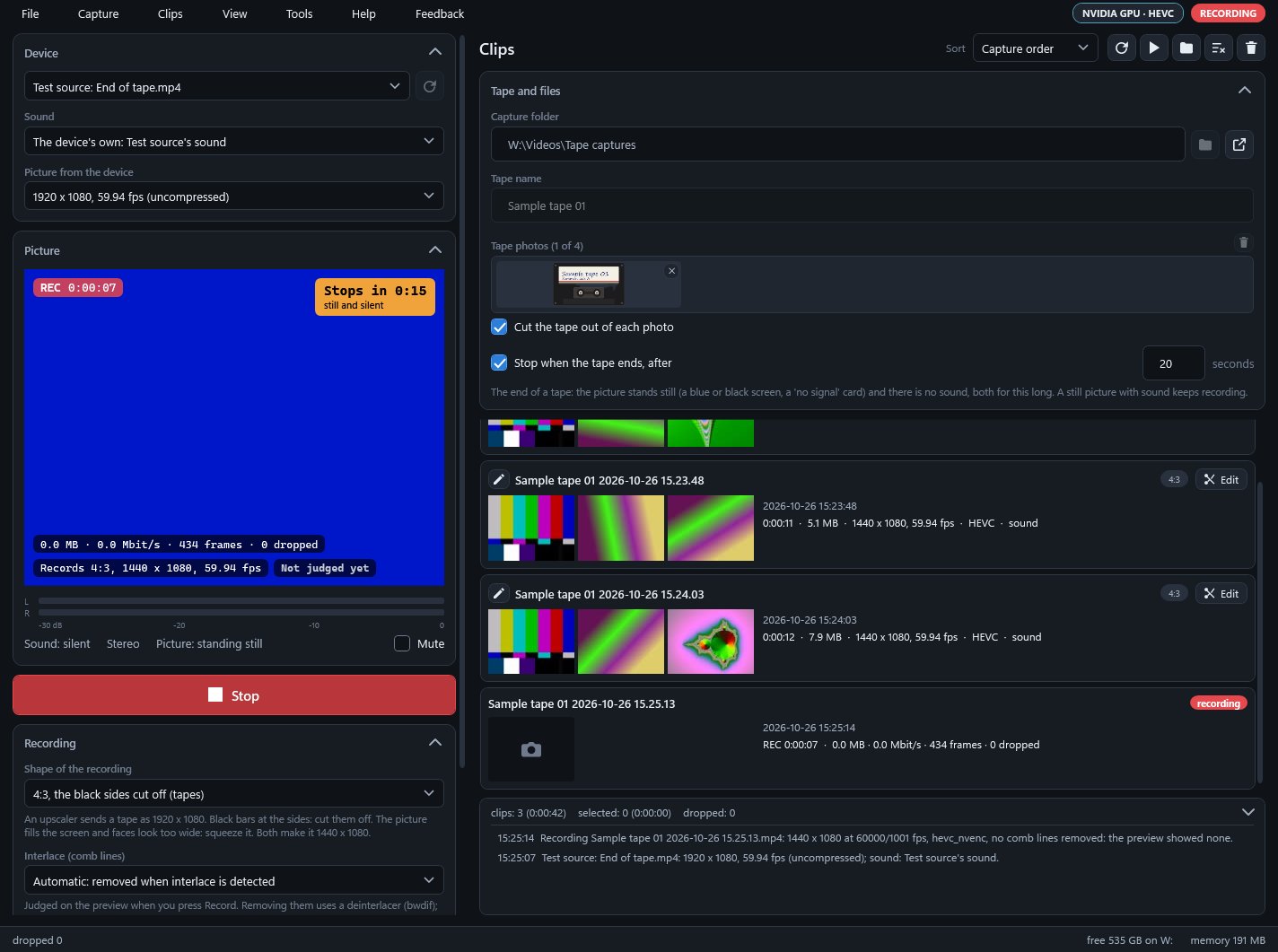
A still picture with no sound for the set time, 60 seconds unless changed, stops the recording, and an orange countdown shows first. The MP4 is finished the moment it stops.
Drop up to four photos of the tape, its case and its cards under the tape name. They are saved beside the recordings under the tape's name, with a cut-out copy of the tape made on the PC.
Joining is free and takes your e-mail address only. Already a member? Sign in and the download is here.
Click a picture to see it full size.
| Part | What it does |
|---|---|
| Device | The capture device or webcam, its sound (the device's own is paired with it by itself) and the picture format it sends. |
| Picture | The live picture as it will be recorded, marked Progressive or Interlaced, with left and right sound meters from -30 dB to 0 dB and a Mute box. |
| Record | Starts and stops a recording (Ctrl+R and Ctrl+.), while a red REC mark on the picture counts the time. |
| Recording | The shape (4:3 cut or squeezed, 16:9, square), comb line removal, Quality and Format (H.264, HEVC, or AV1 when the graphics card encodes it). |
| Tape and files | The capture folder, the tape name that names the files, up to four tape photos, and Stop when the tape ends with its seconds. |
| Clips | Every recording in the capture folder with three pictures, its length, size and format, a pen that renames the file and an Edit button that opens it in SiggySoft Video Editor when that is installed. |
| Messages and status bar | What the program did, then frames dropped, the last file, free space on the capture drive and the memory in use. |
| Tools > Setup check | Installs ffmpeg, downloads the cut-out model, test-writes the capture folder, lists the devices and names the encoder. |
| Feedback menu | Report a problem, suggest a feature, ask a question or say thanks; a button shows the whole report before it is sent. |
To check the download, run Get-FileHash SiggySoftVideoCapture-3.2.2-Setup.exe in PowerShell and compare the result with the SHA-256 above.
An installed copy asks www.middlesiggy.com for a new version at every start, and once a day reads Microsoft's public list of .NET releases (7 KB) to warn when .NET is missing a fix; tick boxes in the setup check turn each off, and the .NET check sends nothing about the PC. ffmpeg and the 224 MB cut-out model are downloaded only when you ask for them in Tools > Setup check, and tape photos are cut out on the PC. A Feedback report leaves the PC only when you press Send; there are no usage counts and no crash reports. See the site's privacy policy.
What the recent versions added, newest first. The full list is in the manual.
Version 3.2.2 · 2026-10-26
Version 3.2.1 · 2026-10-26
Version 3.2.0 · 2026-10-08
Version 3.1.2 · 2026-10-07
Version 3.1.1 · 2026-10-07
Version 3.1.0 · 2026-10-07
The program's Help menu opens the manual. To report a problem or suggest an idea, use the Feedback menu in the program: you see everything before it is sent. Or write through the contact page.