SiggySoft Media Player

Plays a list of videos on a second screen for an audience, with loops, waits and 19 transitions.

A free Windows program from SiggySoft LLC · version 1.4.3 · all programs

What it does

SiggySoft Media Player plays a list of videos on a TV, a projector or a second screen for an audience, while your own screen keeps a preview, the list and what comes next. Each video plays once and goes on, plays once and waits for Next, or loops without a gap until you press Next, and changes into the next one with one of 19 transitions. It is made for shows such as a welcome loop while guests arrive, then an opening video once everyone is seated. Every key can be changed, so a presentation remote can run the show.

Once, wait or loop

Each video plays once and goes on, plays once and waits on its last picture for Next, or loops until Next. A loop goes from its last frame straight to its first, with no gap in the picture or the sound.

19 transitions

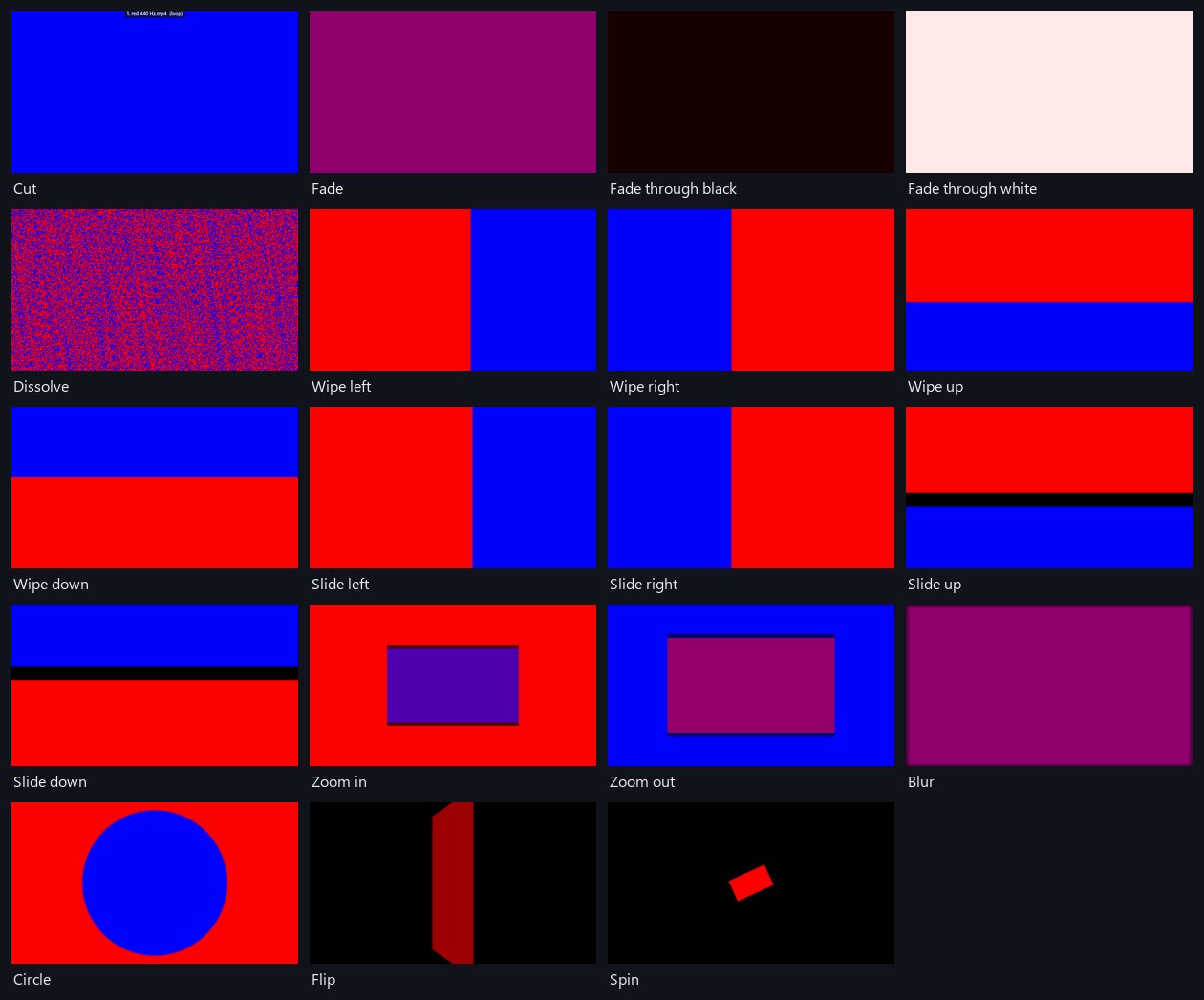
Cut, fade, fade through black or white, dissolve, four wipes, four slides, zoom in and out, blur, circle, flip and spin, each from a quarter of a second to 5 seconds long. Both videos keep playing through the change.

Second screen, own preview

Full screen goes on another screen when there is one, while your window shows the same picture as a preview. Identify puts each screen's number on it, and Windows does not sleep while a list plays.

Keys and presentation remotes

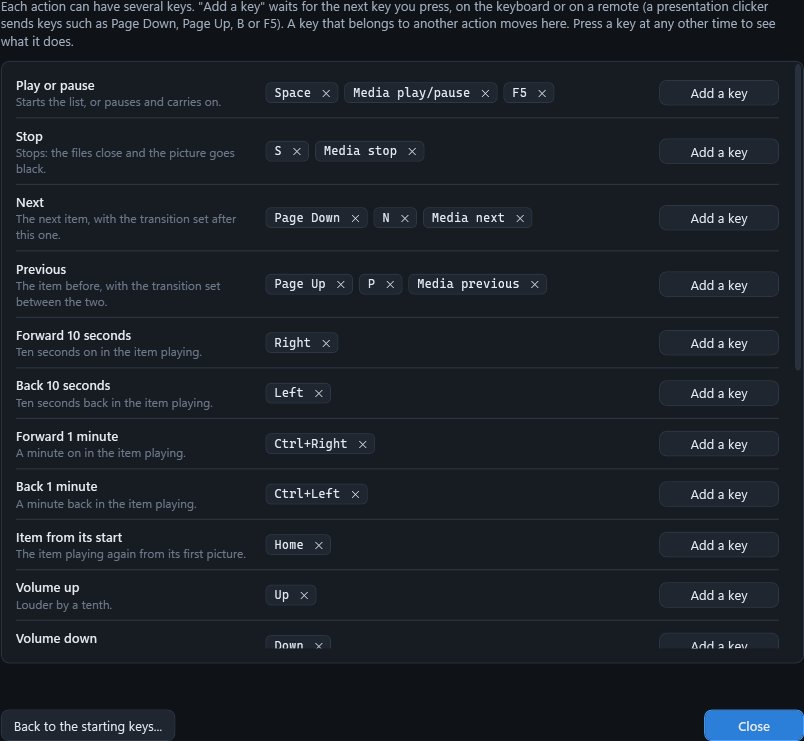
Every action's keys can be changed in Tools > Keys. The starting keys already suit many remotes: Page Down for Next, Page Up for Previous, B for a black screen, F5 to play.

Get SiggySoft Media Player

  • Windows 10 or 11, 64-bit
  • The .NET 10 Desktop Runtime or a newer one; Setup installs it when it is missing
  • A graphics adapter with Direct3D 10 or 11, which draws the picture and the transitions
  • The FFmpeg libraries (77 MB), downloaded once by the setup check when you agree
  • A second screen, TV or projector for the audience; with one screen, full screen covers it and Esc brings the window back
  • A sound output for the sound; without one, the videos play silently
  • Free for Team Siggy members; joining is free
Join Team Siggy to download

Joining is free and takes your e-mail address only. Already a member? Sign in and the download is here.

Version 1.4.3 · SiggySoftMediaPlayer-1.4.3-Setup.exe · 12.3 MB
SHA-256 7bc59d65564207d80035f23156601d57d3c58f2da9203363c65a3fdff2c486e9

What it looks like

Click a picture to see it full size.
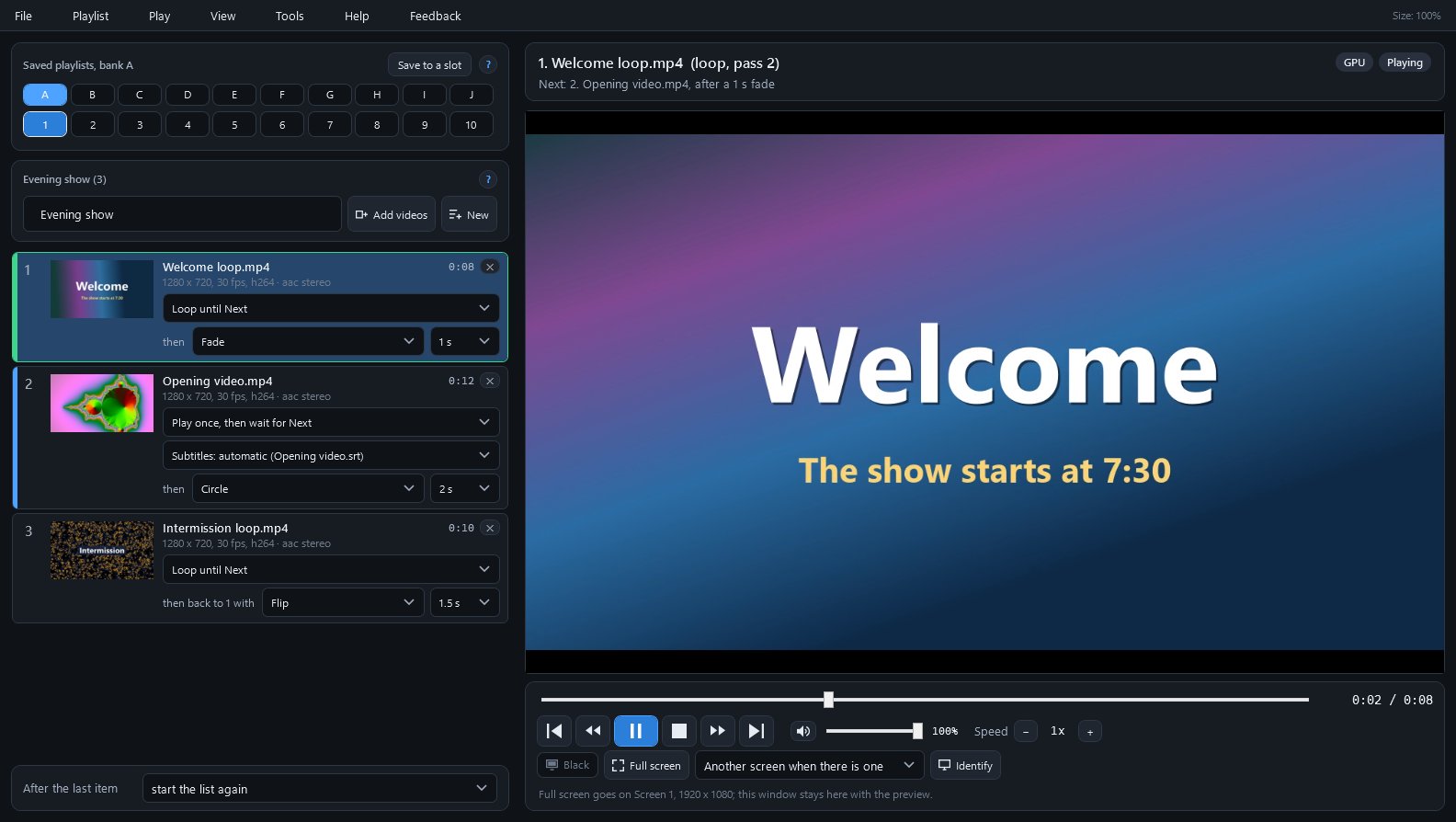
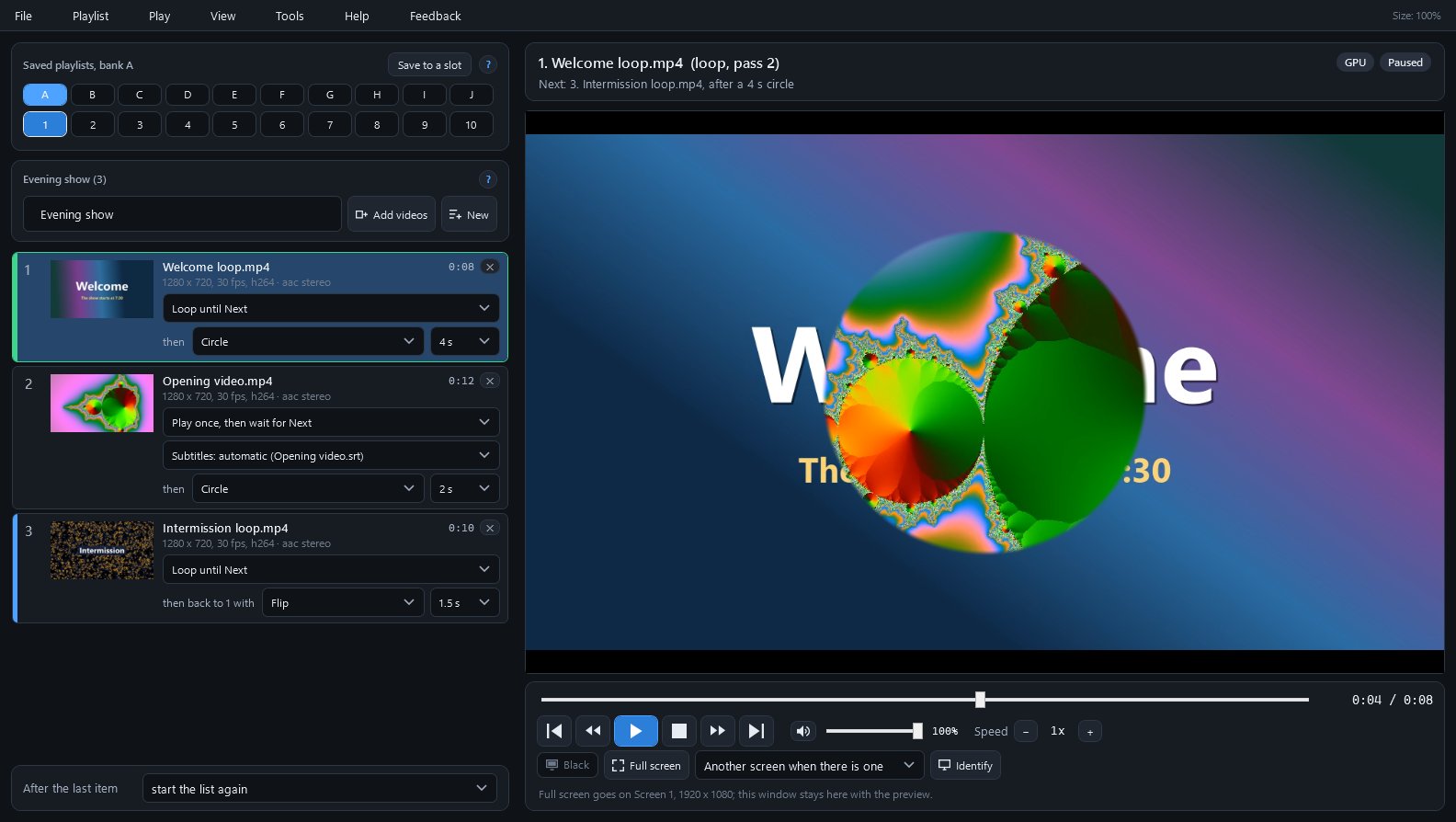
A three-video show: a welcome loop on screen, an opening video that waits for Next, an intermission loop
Half way through a 4-second Circle from the welcome loop into the opening video
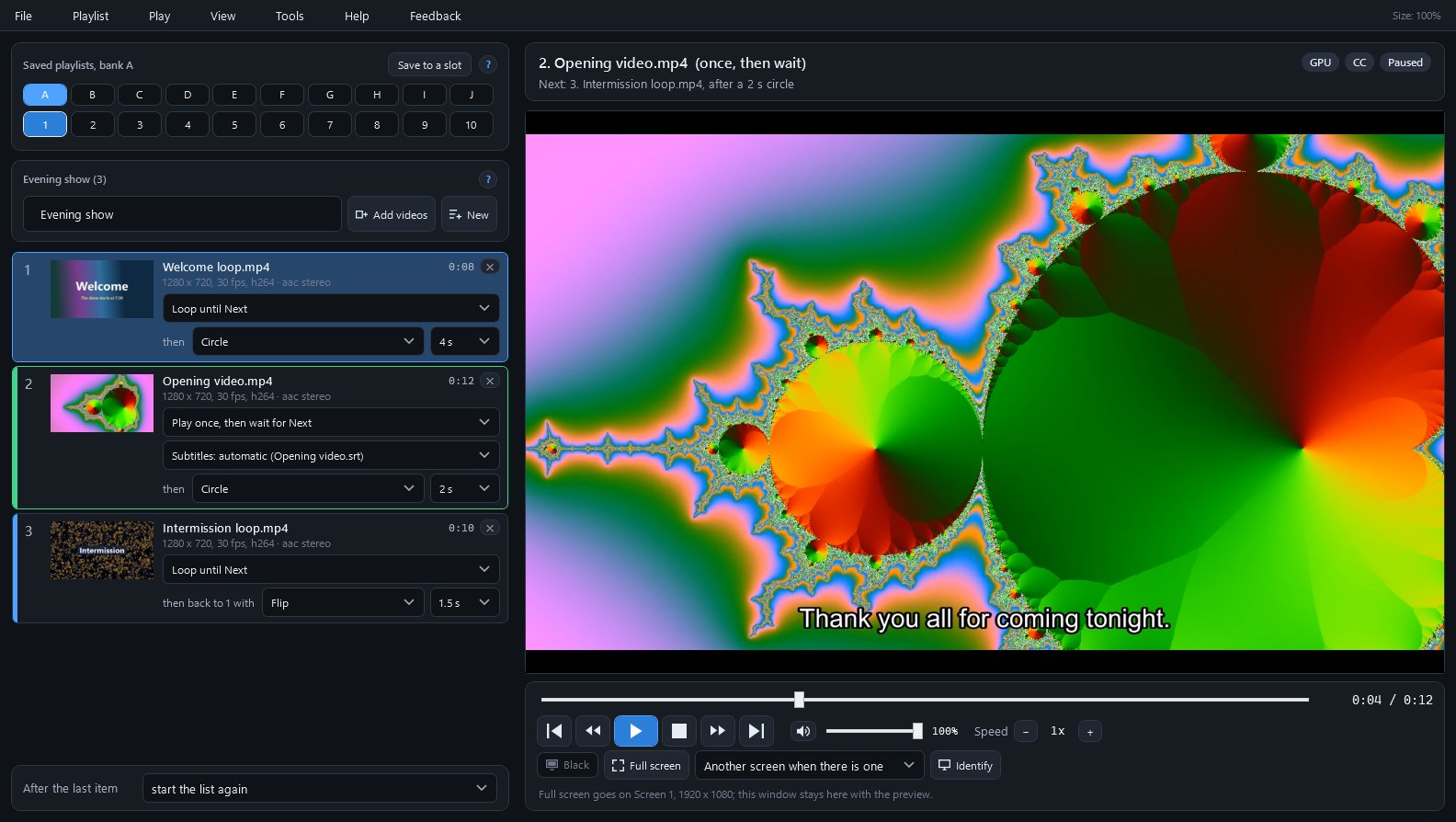
Subtitles from a file beside the video, with the CC badge at the top right
All 19 transitions, each shown half way from a red test video into a blue one
Tools > Keys: every action can have several keys, from the keyboard or a remote

What's in the window

PartWhat it does
Saved playlists100 slots in banks A to J; a lit number holds a playlist, and one click opens it.
The listOne row per video with a small picture, its length, how it plays, its subtitles and the transition into the next; drag rows to change the order.
After the last itemStay on the last picture, fade to black, or start the list again.
Now and nextThe video on screen and how it plays (loop, pass 2), what comes next with which transition, and the GPU or CPU and CC badges.
PreviewThe picture the full screen shows, transitions and subtitles included; a double-click opens or closes full screen.
ControlsTime bar, Previous, back and forward 10 seconds, Play, Stop, Next, volume, speed from 0.25 to 4 times, Black, Full screen and Identify.
Tools > KeysEvery action with its keys; Add a key waits for a key on the keyboard or a button on a remote.
Tools > Sound checkRecords 8 seconds of the sound the player sends and of what Windows plays, says in plain sentences what differs, and attaches both to a report if you choose to send one.
Setup checkLists what the player needs, downloads the FFmpeg libraries when you agree, and names the sound output and the screens connected.

Installing it

  1. Download the installer (SiggySoftMediaPlayer-1.4.3-Setup.exe) from the box above. The installer is not signed yet, so the browser may say the file is not commonly downloaded: choose Keep.
  2. Open it. Windows may say it protected your PC: click More info, then Run anyway.
  3. It installs for your Windows account without administrator rights, starts the program, and puts a shortcut on the desktop and in the Start menu. If the PC lacks the .NET runtime the program needs, the installer downloads it from Microsoft first.
  4. New versions come from this site. When the program starts it looks for one and downloads it in the background; a notice under the menu says when it is ready, and it installs the next time you start the program (or at once from Help, Check for updates).
  5. To remove it: Windows Settings, Apps, Installed apps. Your settings and your own files stay.

To check the download, run Get-FileHash SiggySoftMediaPlayer-1.4.3-Setup.exe in PowerShell and compare the result with the SHA-256 above.

Tips

  • Press Identify beside the Full screen button before the show: each screen shows its number, and the one full screen will use says Full screen goes here.
  • To see what a remote's buttons send, open Tools > Keys and press them; the line at the bottom names each key.
  • Give a subtitle file its video's name (Speech.srt beside Speech.mp4) and it is used without being chosen; C hides or shows every video's subtitles.
  • The keys and the remote reach the player only while its window or the full screen is the active window; after using another program, click one of them again.
  • To play the sound through the TV, make the TV Windows' default sound output; the player moves to it within a second.

Privacy

The installed player checks www.middlesiggy.com for a new version at every start (Settings > Updates turns this off) and checks Microsoft's list of .NET fixes once a day. The FFmpeg libraries download once, only after you agree in the setup check. A Feedback report, including a Sound check's recordings, leaves the PC only when you press Send; the player sends no usage counts and no crash reports. See the site's privacy policy.

Version history

What the recent versions added, newest first. The full list is in the manual.

Version 1.4.1 · 2026-10-26

  • Fixed: during a transition, the Next line gave the length of the transition on screen instead of the one into the next video
  • The manual is written for anyone who downloads the program from this site

Version 1.4.0 · 2026-10-26

  • Subtitles: text subtitles (SRT, ASS, WebVTT and others) and picture subtitles (DVD, PGS, DVB), inside the video or in a file beside it
  • A subtitle choice on each row: automatic, off, a track, or a file
  • A CC badge shows while subtitles are on; the C key hides and shows them

Version 1.3.0 · 2026-10-26

  • Videos decode on the graphics card when it can: a 1080p HEVC video at 60 pictures a second took 40% less processor time on the development PC
  • A GPU or CPU badge says where the playing video is decoded
  • Updates come from www.middlesiggy.com

Version 1.2.0 · 2026-10-26

  • Fixed: a buzzing noise heard whenever something played, caused by each 10 ms sound buffer being added into the next
  • Fixed: short gaps in the sound on files that store their sound behind their pictures
  • Tools > Sound check records what the player sends and what Windows plays, for a report you choose to send

Version 1.1.1 · 2026-10-25

  • The manual's PDF shows the pictures of the window whole and prints at full size

Version 1.1.0 · 2026-10-14

  • Identify shows each screen's number on it for 4 seconds, and which screen full screen goes to

Help and feedback

The program's Help menu opens the manual. To report a problem or suggest an idea, use the Feedback menu in the program: you see everything before it is sent. Or write through the contact page.

All SiggySoft programs